(Pricing verified June 2026. Prices are subject to change — always check the vendor's website for current pricing before purchasing.)
You Just Lost Your Files. Now What?
It happens fast. A wrong click. A failed update. A drive that suddenly won't mount. And in that moment, your brain goes straight to Google: "best data recovery software."
We get it — and we're not going to pretend those tools don't exist. Some of them are genuinely useful in the right situation.
But before you download anything, you need to read this entire post. Because the wrong move in the next 10 minutes could permanently destroy any chance of getting your data back — whether you're trying to do it yourself or eventually calling a professional.
We're Five Star Data Recovery. We've been recovering data for over 10 years. We've also seen what happens when people run recovery software on the wrong drive at the wrong time. It's not pretty.
Here's the honest guide we wish everyone read before they did anything.
First: The Hard Stop List
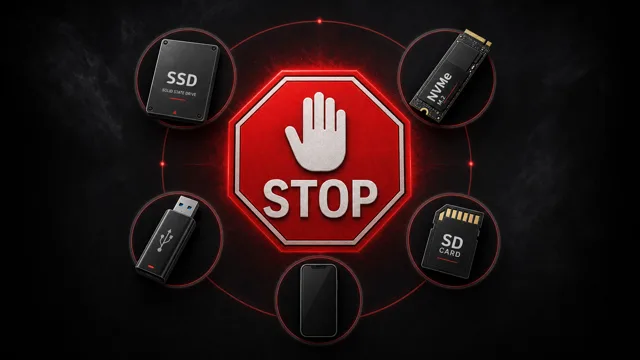
NEVER Attempt DIY Recovery on SSDs, NVMe Drives, or Any Flash-Based Storage
This is not a preference. This is a technical reality.
SSDs, NVMe drives, USB flash drives, SD cards, and the internal storage on most modern phones and tablets all use a feature called TRIM. (SSD data recovery) When you delete a file on one of these devices, TRIM immediately signals the drive to wipe those storage blocks clean — not when you empty the trash, not when you restart, but right now, in the background, automatically.
By the time you've opened a browser and searched for recovery software, the data may already be gone at the hardware level. No software can recover data that has been physically zeroed out by TRIM.
If you've lost data on any flash-based device, the only move is to stop completely and get a data recovery quote from a professional lab. Time and additional read/write activity are your enemies.
This applies to:
- Solid-state drives (SSD) — laptop or desktop
- NVMe drives (the fast M.2 drives in modern computers)
- USB flash drives and thumb drives
- SD cards and microSD cards
- Phones and tablets (iOS and Android)
- Any device described as having "flash storage"
When DIY Software Might Be Appropriate
If you're working with a traditional spinning hard drive (HDD) and the situation fits one of these scenarios, consumer recovery software may have a reasonable chance:
- You accidentally deleted files and the drive is still healthy
- You accidentally formatted a drive and caught it quickly
- The drive is fully recognized by your computer and responding normally
- The data is not critical — you can live without it if recovery fails
If none of those apply — if the drive is making clicking, grinding, or buzzing noises, if it's not being recognized, if it has physical damage, or if you've already run one recovery attempt that failed — stop here and contact our hard drive data recovery team. Every additional action reduces your recovery odds.
When to Put the Software Down Immediately
Call a professional if any of these are true:
The rule we live by: Every time you run software on a degraded drive, you reduce the probability of professional recovery. The sooner you stop, the better your odds.
The Right Way to Use Recovery Software: Clone First, Always
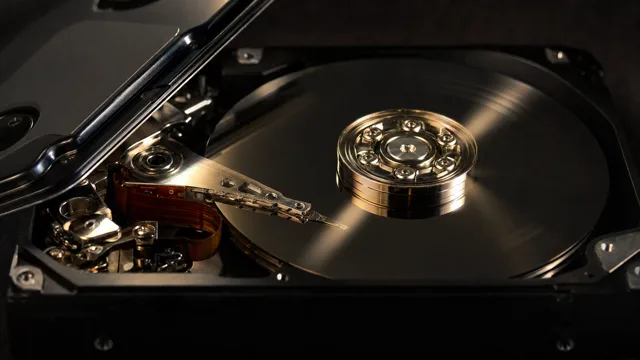
If you've decided to proceed with DIY recovery on a healthy HDD, there is one non-negotiable step before you run any software:
Create a sector-by-sector forensic clone of the drive. Then work only on the clone — never the original.
Here's why this matters: recovery software reads the drive repeatedly, sometimes dozens of times. If the drive is at all degraded — even if it seems fine — that repeated stress can push it past the point of no return. If the drive dies mid-scan, you lose everything.
A forensic clone creates a perfect, bit-for-bit copy of every sector on the drive, including damaged areas. You then run your recovery software against that image. The original drive sits untouched as your backup. This is exactly how professional labs operate — we never work on original media.
Recommended Cloning Tools (Free)
The gold standard for forensic imaging. It's designed specifically for failing drives — it skips bad sectors on the first pass and returns to them later, maximizing data capture. Command-line only, so it's best for technically comfortable users.
→ gnu.org/software/ddrescueUsed by law enforcement and professional forensic analysts. Creates verified forensic images and is straightforward enough for advanced home users. Free to download from Exterro.
→ exterro.com/ftk-imagerOnly after you have a verified clone should you run any of the tools below — and run them against the image file, not the original drive.
The Top 10 Data Recovery Software Tools
These are the most widely used consumer and prosumer recovery tools. We're listing them honestly — pros, cons, and the situations they're actually built for.
Recuva, made by the same team behind CCleaner, is probably the most well-known free recovery tool. It's simple, it's fast, and for basic deleted file recovery on a healthy drive, it works.
Note: The standalone Pro version has been discontinued. Recuva is now primarily a free tool.
→ ccleaner.com/recuvaDisk Drill has one of the better interfaces in this category. It supports a wide range of file formats and works on both platforms, which makes it a go-to recommendation for Mac users who don't have many options.
EaseUS is one of the most downloaded recovery tools on the market. It has a clean scan process, good file preview before recovery, and handles a decent range of scenarios.
Stellar sits closer to the professional end of consumer tools. It handles more complex scenarios than most and has solid support for recovering from formatted or corrupted volumes.
TestDisk is a command-line tool designed to repair partition tables and recover lost partitions. PhotoRec (bundled with it) recovers files by scanning raw data — it ignores the filesystem entirely and looks for file signatures.
R-Studio is what power users reach for when consumer tools fail. It has deep scanning capabilities, supports a wide range of filesystems (including Linux ext4), and gives you granular control over the recovery process.
Recoverit has carved out a niche for video recovery specifically, and it earns it. It handles fragmented video files better than most tools in this category and supports a broad range of camera and drone formats.
MiniTool is a solid, lightweight tool for Windows users who want something fast without a lot of bloat. It's not the deepest scanner, but for straightforward recovery scenarios it gets the job done.
GetDataBack has been around for a long time and has a loyal following among IT professionals for good reason. Separate versions for NTFS and FAT/exFAT filesystems, solid deep scanning, and reliable results on healthy or lightly corrupted drives.
Data Rescue has been around since 2002 and has earned a loyal following — particularly among Mac users — for good reason. While most recovery tools feel like Windows software that got ported to Mac as an afterthought, Data Rescue was built with macOS in mind from the start. It handles everything from accidentally deleted files to non-mounting drives and corrupted volumes, with a clean step-by-step interface that doesn't require any technical knowledge to use.
It's especially popular with photographers, videographers, and creative professionals who rely on Macs and can't afford to lose project files or media assets.
What None of These Tools Can Do
We want to be direct with you, because the marketing around recovery software can create false expectations.
No consumer recovery software can:
- Recover data from a physically damaged drive. If the read heads have crashed, if the platters are scored, if the motor has seized — software cannot help. This requires a certified cleanroom, specialized hardware, and trained engineers.
- Overcome firmware corruption. Drives have onboard firmware that controls how they operate. When firmware fails, the drive often won't respond at all. This is a hardware-level problem.
- Work around TRIM on flash storage. As covered above — if TRIM has run, the data is gone at a physical level that software cannot address.
- Undo the damage from a previous failed recovery attempt. If a previous tool ran on a failing drive and caused further degradation, that damage is done.
This isn't a knock on these tools — they do what they're designed to do. But they're designed for logical data loss on healthy hardware. Physical and electronic failure is a different problem entirely.
When in Doubt, Stop
If you're reading this post with a drive in your hand and you're not sure whether your situation is a DIY case — it probably isn't.
The safest default is: do nothing, then call.
Every action you take on a failing drive — powering it on repeatedly, running scans, attempting repairs — increases stress on already compromised hardware. Professional recovery labs work with drives in their most intact state. The sooner you stop, the more we have to work with.
Five Star Data Recovery Is Here When You Need Us
We're based in Glendale, CA, and we serve customers nationwide. If you're not local, we provide free insured shipping to our lab — just give us a call and we'll walk you through it.
Our promise: No Data, No Charge. If we can't recover your files, you pay nothing for the attempt.
If you tried one of the tools above and it didn't work — or your drive is making noise, or you're just not sure — reach out. We've seen it all, and we'll give you an honest answer about whether we can help.